



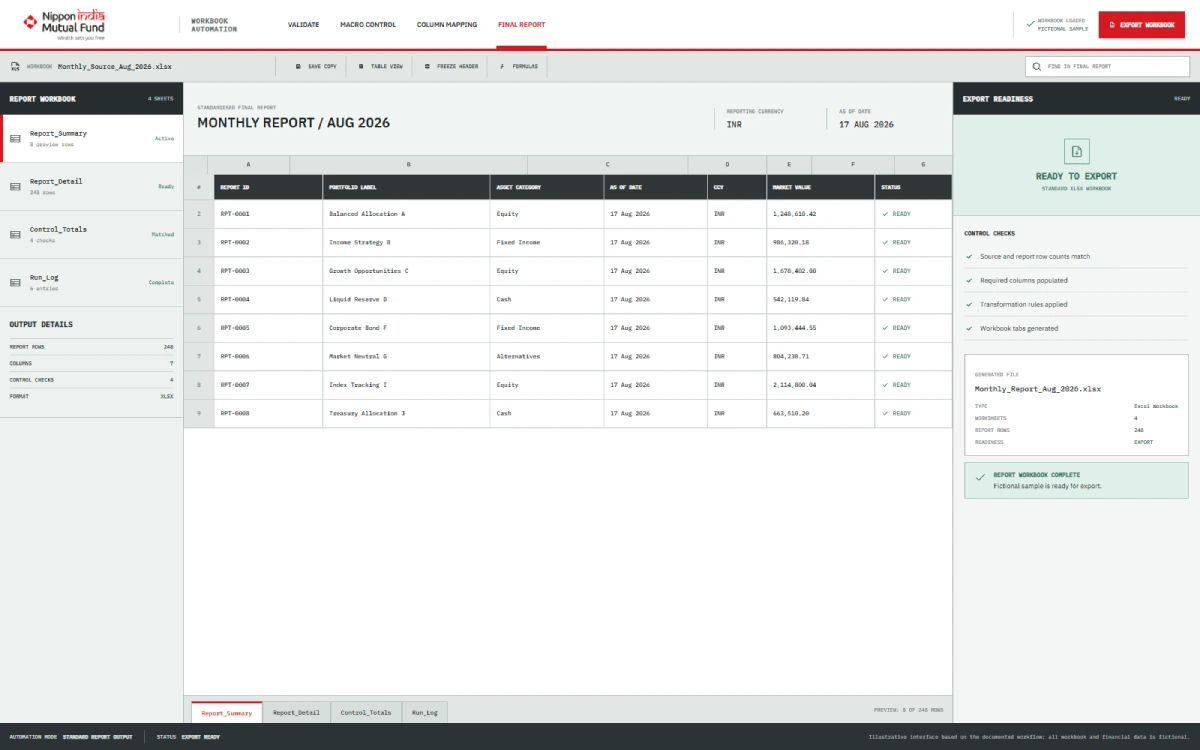
Workbook validation
Required structure checked first
Completed project
 India
Nippon India Mutual Fund
India
Nippon India Mutual Fund
Custom Excel VBA Report Automation
India
Nippon India Mutual Fund needed a faster and more consistent way to turn daily financial and portfolio data into business-ready Excel reports. A custom VBA solution was developed to validate the input workbook, extract the required business data, create a new workbook and apply standard formatting through one-click macro buttons.
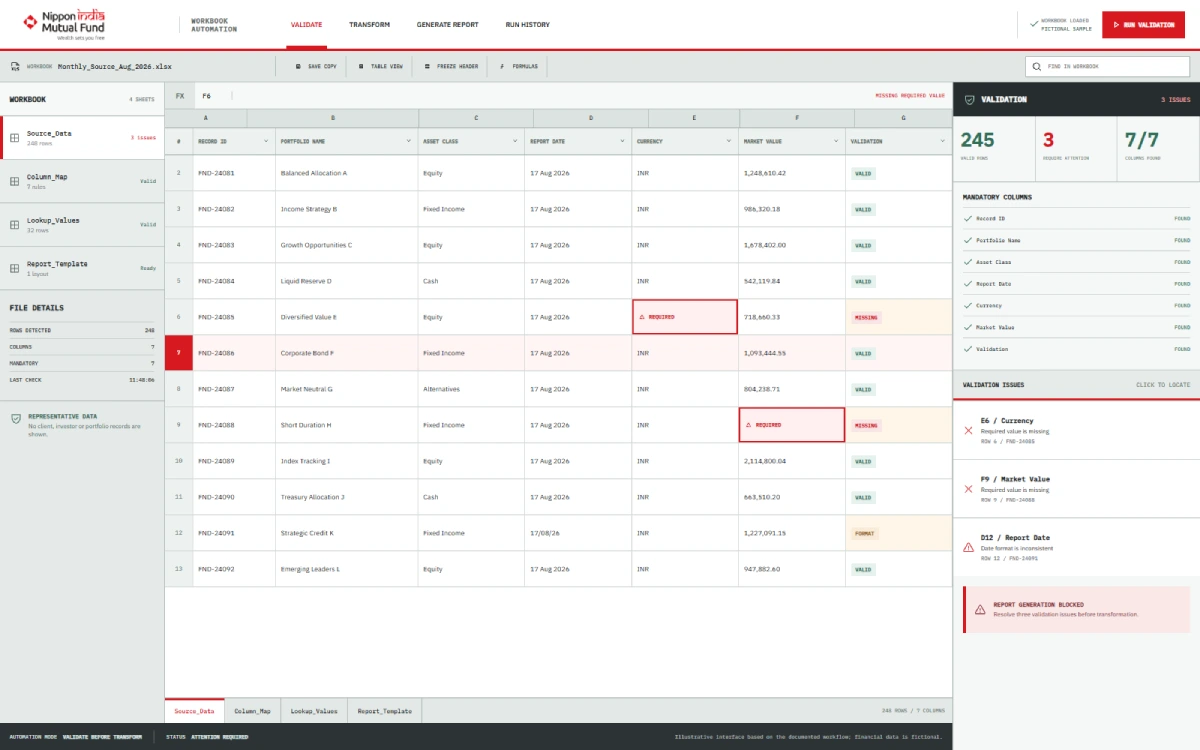
Selected data
Only required fields extracted
New workbook
Output created automatically
Standard format
Consistent layout applied
Nippon India
Asset management
Excel Report Automation
Completed
- Location
- India
- Industry
- Asset Management / Financial Services
- Technology
- Microsoft Excel and VBA
- Main capability
- Workbook validation, data extraction and formatted report generation
Client context
Supporting a Daily Financial Reporting Workflow
Nippon India Mutual Fund works in India’s asset management and financial services sector. Its reporting workflow involved daily financial and portfolio data held in Excel workbooks.
Users manually checked the workbook structure, identified and copied selected columns, created new workbooks, formatted the results and shared the completed reports. The work required care because a wrong column, missing row or formatting mistake could affect the final output.
The project focused on automating this documented Excel workflow while keeping it accessible to staff who did not need technical VBA knowledge.
Why the Reporting Process Needed Automation
The existing workflow depended on users completing several repetitive Excel tasks correctly each day. They had to validate the workbook, locate the right columns, copy the required data, create the output workbook and apply the expected format.
Too Much Manual Work
Users spent time checking, copying, creating and formatting workbooks instead of focusing on the financial information in the report.
Risk of Wrong Columns or Missing Rows
Manual selection could lead to an incorrect column being copied or a required row being missed.
Formatting Errors
The final report could contain formatting mistakes when the same layout had to be recreated manually.
Inconsistent Report Formats
Different manual actions could produce reports that were not presented in a consistent way.
Dependency on a Fixed Template
The reporting process depended on the expected workbook structure. Changes could break the workflow or produce an invalid report, so the solution needed to detect structural problems before processing.
A One-Click Excel VBA Reporting Solution
A custom VBA automation was developed inside Excel to manage the reporting steps from validation to output.
- checks the selected input workbook before processing;
- verifies mandatory columns and cells;
- stops processing when the expected workbook structure is invalid;
- extracts only the required business data;
- creates a new output workbook automatically;
- applies the standard report formatting;
- presents meaningful error messages when input requirements are not met; and
- lets nontechnical users run the process through Excel macro buttons.
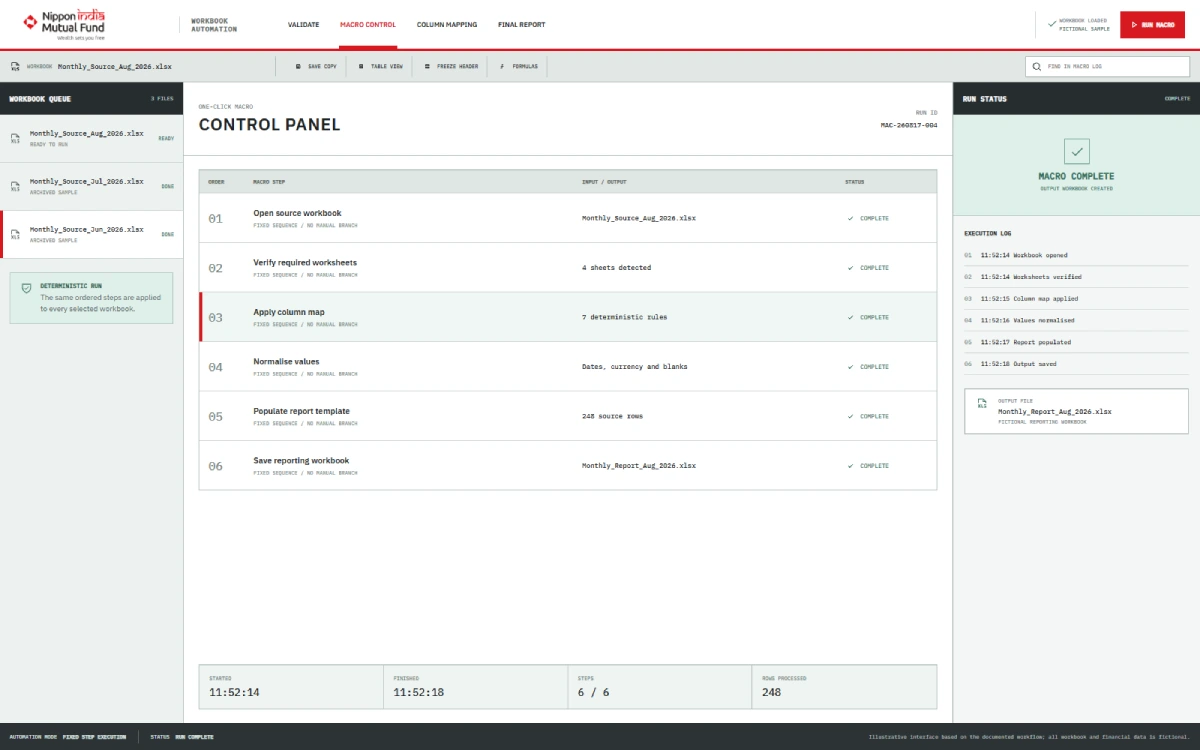
The result is a controlled Excel workflow that converts a valid source workbook into a consistently structured, business-ready report.
From Workbook Validation to a Finished Excel Report
The automation follows a controlled validation-to-report workflow. The left panel changes with each step as you scroll.
Step
01
of 06
Step 01
The User Opens the Excel Automation
The user starts from the Excel workbook containing the VBA controls. Clear macro buttons provide access to the reporting process without requiring the user to edit or run VBA code manually.
Step 02
The User Selects the Input Workbook
The user chooses the workbook containing the daily financial or portfolio data to be processed.
Step 03
The Automation Validates the Workbook
Before extracting data, the VBA logic checks whether the workbook matches the required structure. It verifies the mandatory columns and cells needed by the reporting workflow.
If the workbook is invalid, the automation stops and displays a meaningful message rather than continuing with incomplete or incorrectly structured input.
Step 04
The Required Business Data Is Extracted
After validation passes, the automation identifies and extracts only the selected columns and business data required for the report. Unneeded workbook content is not carried into the output.
Step 05
A New Workbook Is Created and Formatted
The VBA automation creates a new Excel workbook and places the extracted data into the required report structure. It then applies the standard formatting automatically.
Step 06
The Report Is Ready for Business Use
Once processing is complete, the user receives a consistently formatted workbook that is ready for the next documented business step, including review and sharing.
Sharing remains a separate business step; the documented automation creates the report but does not automatically distribute it.
Workbook Validation and Error Handling
The automation does not assume that every selected workbook is valid. It checks the input structure before report generation begins.
Validation Checks
The VBA workflow verifies that the mandatory columns and cells required for processing are present. These checks help prevent the automation from creating a report from an incomplete or unexpected workbook structure.
Invalid Workbook Handling
If a required part of the structure is missing or invalid, processing stops. The user receives a meaningful error message explaining that the workbook does not meet the expected requirements.
Why This Matters
- extracting data from the wrong columns;
- producing an output with missing required rows or fields;
- continuing with an incompatible workbook structure; and
- creating a report that appears complete but was built from invalid input.
The automation still depends on the documented workbook structure. Structural changes may require the VBA logic or its validation rules to be updated.
How the Automation Addressed the Manual Reporting Problems
Scroll to see how each documented problem was addressed by the Excel automation.
The pain point
The automated fix
How the Automation Addressed the Manual Reporting Problems
Open each item to compare the documented issue and automated fix.
Workbook structure checks
The pain point
Users manually checked workbook structure.
The automated fix
VBA validation checks required columns and cells before processing.
Chosen column copying
The pain point
Chosen columns had to be copied manually.
The automated fix
The automation extracts only the required business data.
Selection mistakes
The pain point
Rows or columns could be selected incorrectly.
The automated fix
Validation and controlled extraction reduce manual selection steps.
Manual workbook creation
The pain point
Users created new workbooks by hand.
The automated fix
A new output workbook is created automatically.
Formatting time
The pain point
Formatting took time.
The automated fix
Standard report formatting is applied automatically.
Inconsistent layouts
The pain point
Reports could have inconsistent layouts.
The automated fix
The output follows the same defined format.
Invalid template changes
The pain point
Invalid template changes could interrupt reporting.
The automated fix
The automation stops and shows a meaningful error when the expected structure is not present.
Nontechnical access
The pain point
Nontechnical staff depended on manual VBA steps.
The automated fix
Excel macro buttons provide a one-click interface.
Reported Value of the Excel Automation
The completed VBA solution was reported to reduce the repetitive effort required to prepare financial and portfolio reports.
Manual workflow
Around 10 minutes
After clicking the macro
About 30 seconds
Reported benefits included
- less manual work;
- faster report preparation;
- improved data accuracy;
- standard report formatting;
- fewer human errors;
- better staff productivity; and
- more consistent and reliable reporting.
The developer reported that the workflow took around 10 minutes manually and could be completed in about 30 seconds after the macro button was clicked .
This is a developer-reported project estimate. It is not an independently measured benchmark, a guaranteed processing time or a statement of current performance. Actual speed can depend on the workbook, device and input structure.
Core Features
Move between validation, transformation and output without losing any feature detail.
01
Validate
Check the source before processing.
Input Workbook Validation
Checks the selected workbook before processing begins.
Mandatory Column and Cell Checks
Verifies that the required columns and cells are present in the expected structure.
Meaningful Error Messages
Stops invalid processing and gives the user a clear message when the workbook requirements are not met.
02
Transform
Carry only the required data forward.
Required Data Extraction
Copies only the business data needed for the final report.
Automatic Workbook Creation
Creates a separate output workbook without requiring the user to build it manually.
03
Output
Produce a consistent report through simple controls.
Standard Report Formatting
Applies a defined, consistent format to the generated workbook.
One-Click Macro Controls
Allows the reporting workflow to be run through Excel buttons.
Nontechnical User Access
Keeps the process usable for staff who do not write or edit VBA code.
Where Similar Excel Automation Can Help
The same type of controlled Excel VBA workflow can also fit teams that repeatedly turn structured spreadsheet data into standard reports, including:
- finance and management reporting;
- portfolio reporting support;
- fund and investment operations;
- accounting workbooks;
- operational reporting;
- reconciliation support;
- recurring management information reports; and
- spreadsheet-based data transformation.
A similar solution should be designed around each organisation’s actual workbook structure, validation rules, required fields and output format.
Technologies Used
01
Application
Microsoft Excel
Visual Basic for Applications (VBA)
Excel workbooks
Excel macro buttons
02
Controls
Workbook structure validation
Rule-based data extraction
Automated workbook formatting
Start a conversation
Need a Custom Excel VBA Reporting Workflow?
If your team spends time validating spreadsheets, copying selected data, creating workbooks or applying the same report format repeatedly, a custom Excel automation can turn those steps into a controlled workflow. Discuss your workbook structure, validation rules and required report format with our Excel automation team.
Frequently Asked Questions
1. What is Excel report automation?
Excel report automation uses workbook logic, such as VBA macros, to complete repeatable reporting steps automatically. These steps can include validating an input workbook, selecting required data, creating an output workbook and applying a standard report format.
2. What did the Nippon India Excel automation do?
The solution validated the input workbook, checked mandatory columns and cells, extracted the required business data, created a new workbook and applied standard formatting. Users could start the process through Excel macro buttons.
3. How did the automation handle an invalid workbook?
The VBA logic checked whether the required workbook structure was present before processing. If mandatory columns or cells were missing, it stopped the workflow and displayed a meaningful error message.
4. Could nontechnical staff use the solution?
Yes. The documented workflow used Excel macro buttons so staff could run the automation without writing or editing VBA code.
5. How much time did the automated report take?
The developer reported an estimate of around 10 minutes for the manual workflow and about 30 seconds after clicking the automation button. This was not independently measured and should not be treated as a benchmark, guarantee or statement of current performance.
6. Can the source Excel template be changed freely?
No such capability is documented. The automation depends on an expected workbook structure and validates mandatory columns and cells. If the source structure changes, the VBA logic or validation rules may also need to be updated.


